

Twenty years ago, the process of attracting customers as a business owner relied heavily on getting your business listed in the yellow page directories. These massive volumes were a common sight on bookshelves in households everywhere, serving as the go-to resource for finding local businesses. However, in the fast-paced world we live in today, technology has revolutionized the way customers discover and connect with businesses. Thanks to platforms like Google Business Profile, the task of reaching potential customers has been vastly improved.
With just a few clicks, customers can now effortlessly locate relevant businesses across a wide range of domains. This digital transformation has not only made the search process more convenient and efficient but has also opened up endless possibilities for businesses to reach their target audience. The days of flipping through bulky yellow pages are long gone, replaced by the power of online search engines and the ease of finding businesses that cater to individual needs.
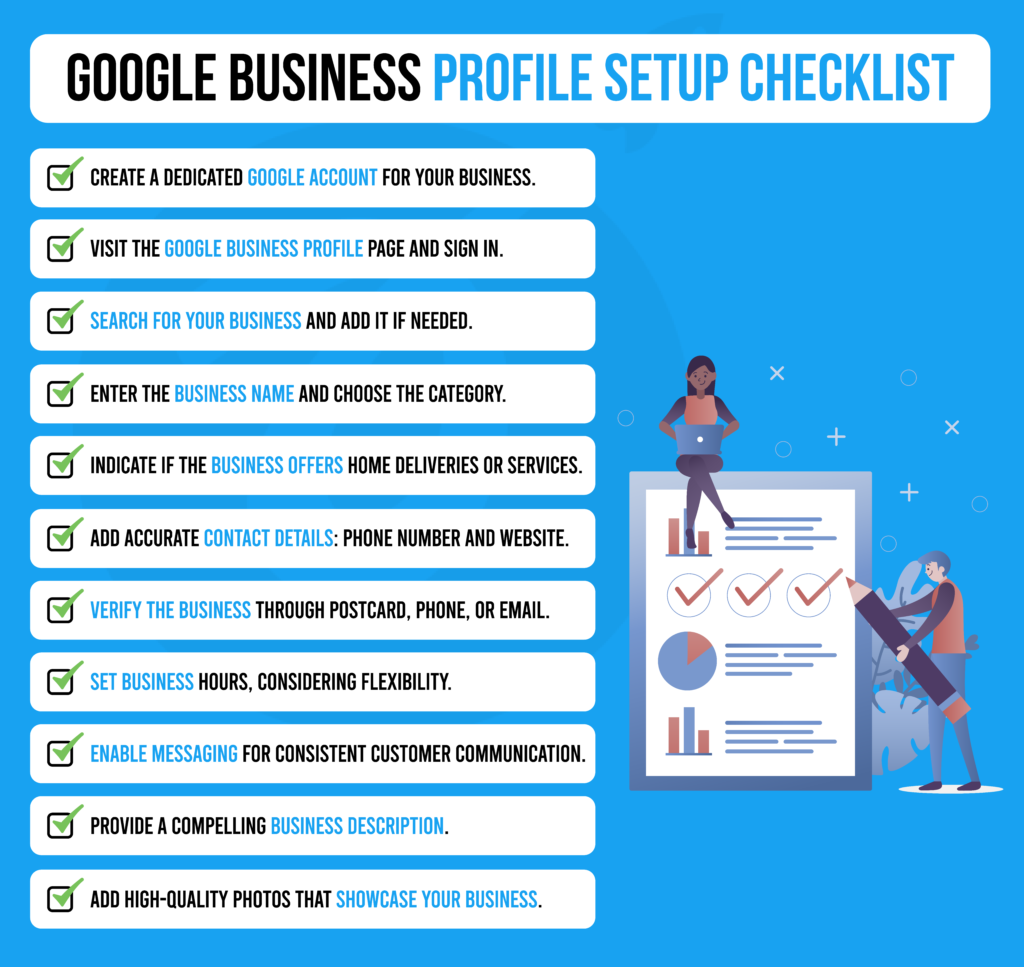
This article provides an in-depth overview on how to set up Google Business Profile for first time users. Check out our checklist for Setting Up Google Business Profile:
What is Google Business Profile?
Imagine having a powerful genie at your service, bringing you customers and giving your business the recognition it deserves. Well, that genie exists, and it’s called Google Business Profile, also known as Google My Business. This magical tool is a favorite among marketers and SEO experts working with local businesses. Whether you run a plumbing company, a sports store, or an auto-tuning service, Google Business Profile is the ultimate solution for businesses of all shapes and sizes. It’s like having a genie who knows exactly how to make your business shine in the online world. Without this powerful tool, your business will not be listed in the Local Pack or Local Finder that helps customers locate nearby businesses.
What is Local Pack or Local Finder?
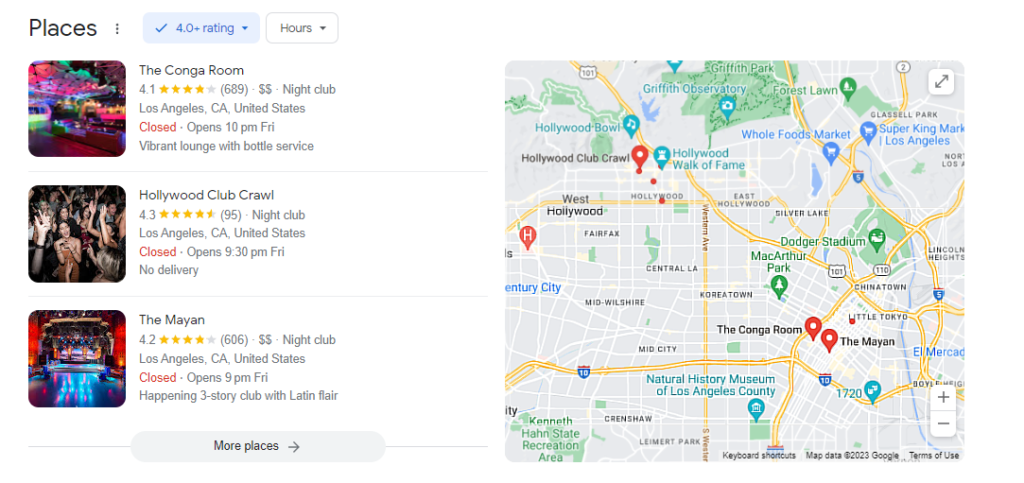
The “Google Map Pack,” also known as the Google Local Map Pack, is a prominent and sought-after section within Google’s local search results. It displays the highest-ranking local listings based on your location or the specified search location. This valuable feature acts as a spotlight, highlighting businesses that excel in local search rankings and making them easily accessible to users. So, if you’re looking to make a splash in the local market, aiming for a spot in the Google Map Pack is a surefire way to get noticed and attract potential customers.
Step-by-Step: How to Create a Google Business Profile
1. Start with Creating a Google Account Specifically for your Business.
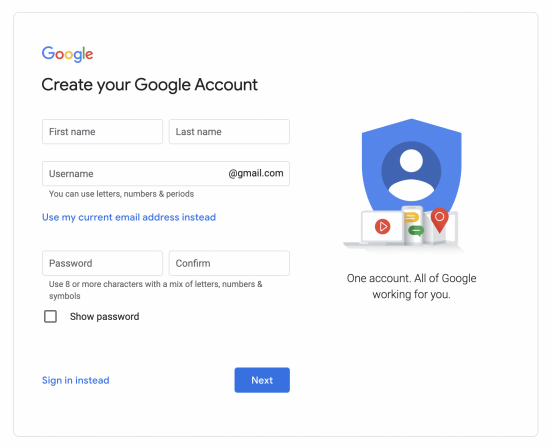
This step is not mandatory but it is generally considered a good practice to set up a new Google Account for each business. Setting up a Google Account is straightforward – simply key in a few crucial pieces of information such as First Name, Last Name, select a username for the account, create a password and proceed to confirm the account. It is a good idea to select a username that describes your business.
When selecting an email account for your auto tuning business, Max Tuners, you can opt for maxtuners@gmail.com or choose the closest available option. However, it is advisable to avoid unprofessional account names like maxtuners123456@gmail.com.
2. Visit the Google Business Profile Page to Get Started
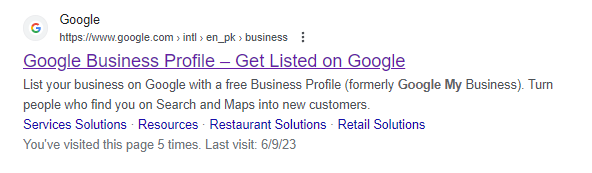
Head over to Google Business Profile to start with setting up your Google Business Profile. There are two main options on the main page: (1) Manage Now and (2) Sign in. First time users will click the Sign In option to get started.
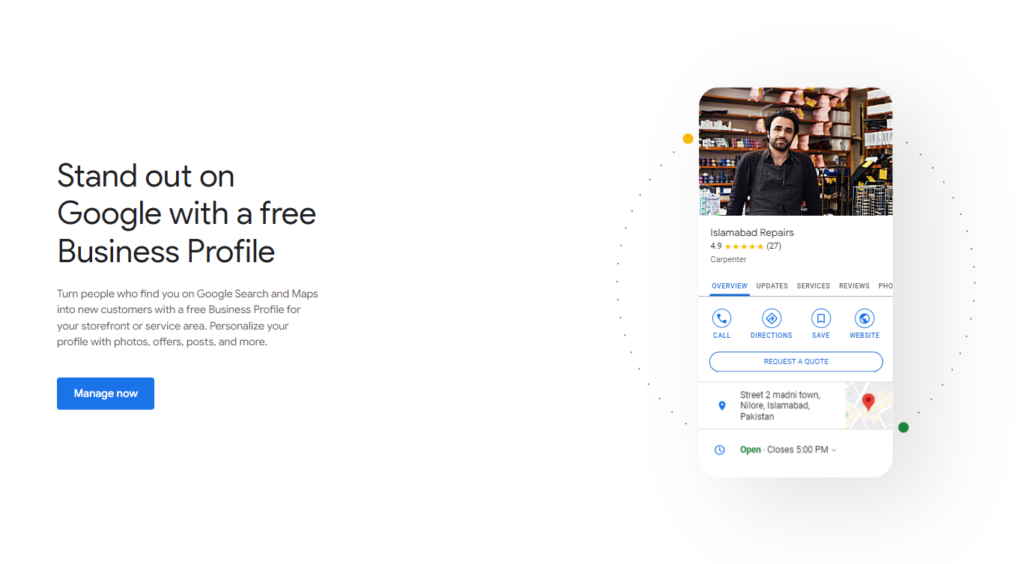
3. Look for Business.
Begin with typing the name of your business in the search bar. If a profile for this name already exists, it will appear but if not, you need to click on the <Add your business to Google> button.
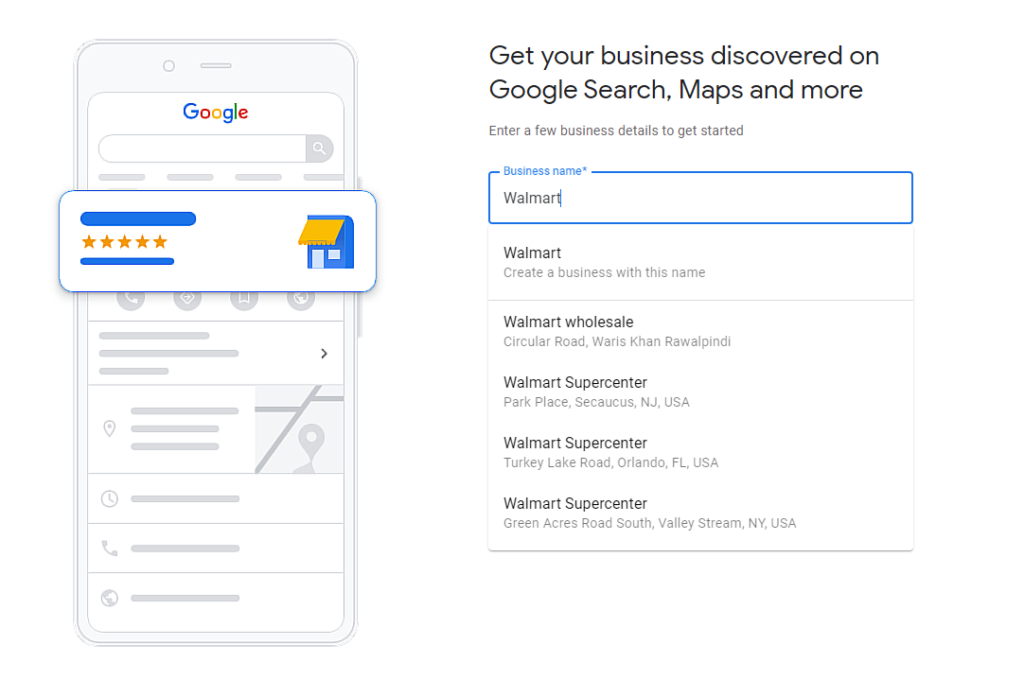
If someone is already running a business profile under your name, you can simply request the management of the profile to hand over the controls to you. Simply click on Request Access and you will be guided through some basic steps.
4. Add the Business Name and Category
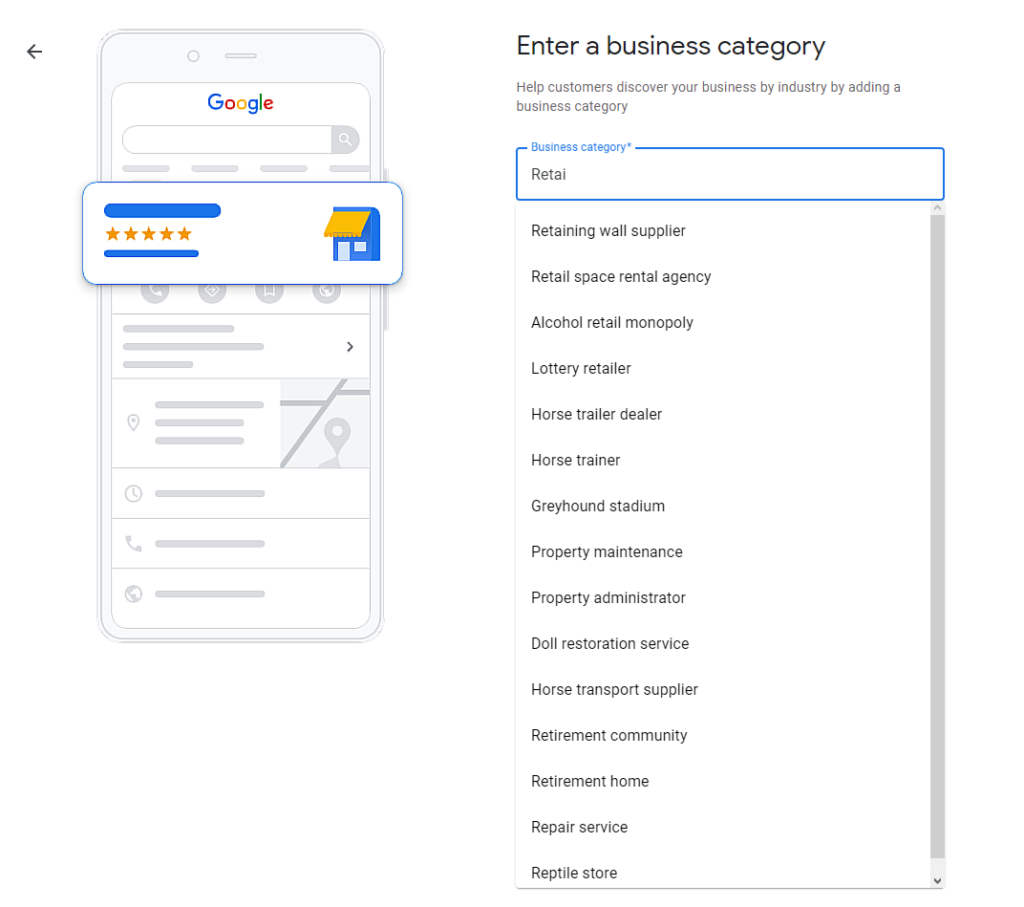
If you are creating a new profile, the first step is to choose the name followed by selecting the business category. Pick the category that best describes the business. There are three categories: (1) online retail, (2) local store, and (3) service business. Online retail is for businesses that allow the customers to purchase products but not service through the website. Local stores are for the brick-and-mortar stores/shops where customers can visit in person. Hotels, restaurants, shops etc. all fall under this category. Service businesses are those which customers can visit for some services such as car maintenance.
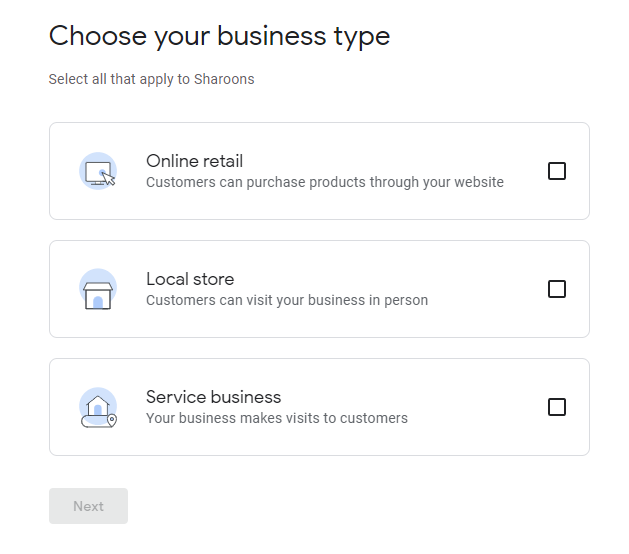
If you are not 100 percent sure about the category, pick one and you will have the edit option later on in the additional categories.
5. Does the Business have a physical location?
If your business has a physical storefront where customers can visit for face-to-face interactions, please provide the location information. If your business operates solely online, please click “No” and proceed.
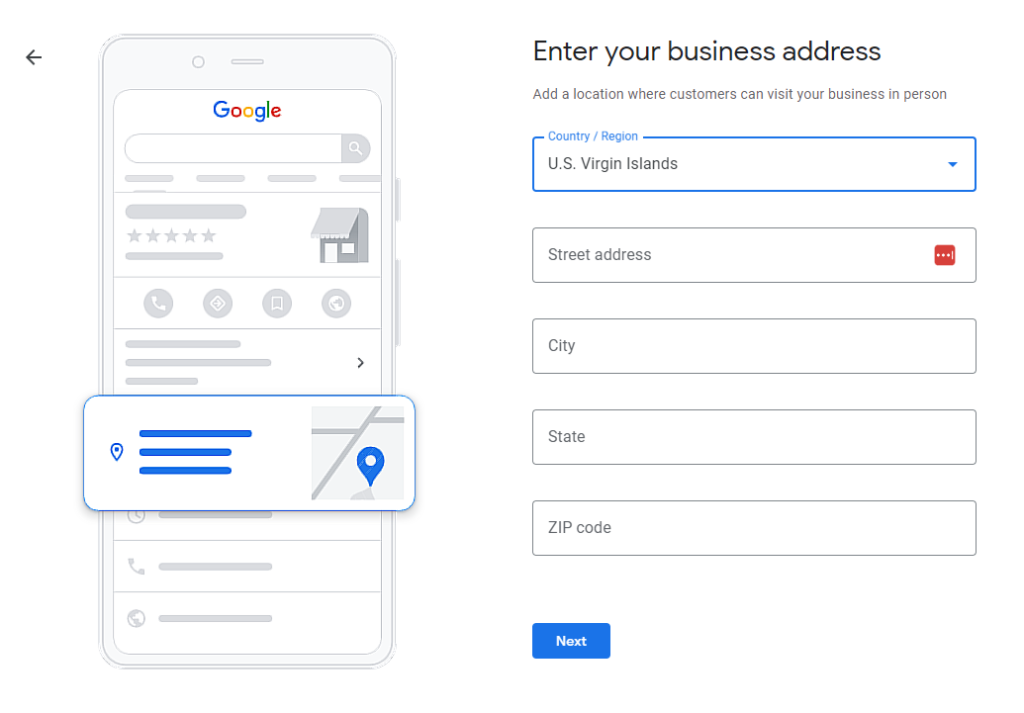
Beware: It is important to refrain from falsely claiming a physical location for your business in order to manipulate local rankings. Such deceptive practices can lead to consequences, such as the suspension or complete removal of your business listing in the future, as it violates the guidelines.
6. Does the business provide home deliveries or services?
When setting up your Google Business Profile, if your business offers delivery services, you should select “Yes” when asked if your business is a service-area business. This designation indicates that your business operates within a specific service area for deliveries.
7. Add Contact Details
Adding correct contact details for your business is crucial as they serve as important touchpoints for customers. You will need to enter the phone number and provide a business website, if available. If your business does not have a website, you can check the box indicating “I don’t have a website.” If you create a website in the future, you will be able to add this information at a later stage.
For agencies setting up Google My Business (GMB) profiles on behalf of a client, please ensure you enter the client’s data and not your own. Only include contact numbers on which you can be reached by Google for the verification process.
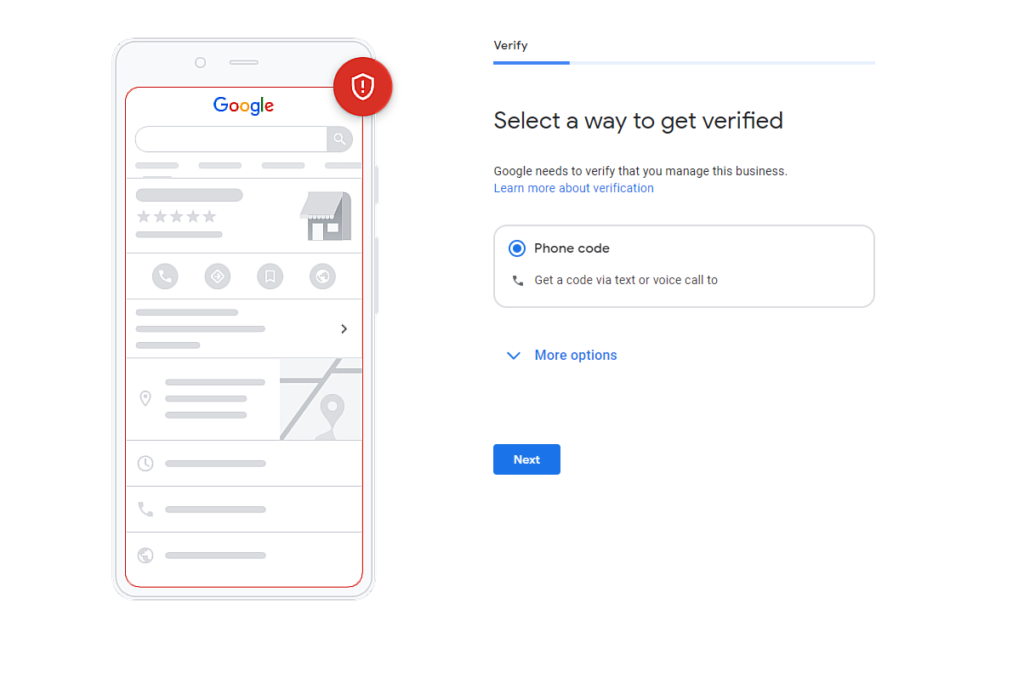
8. Verify the Business
The next crucial step is verifying your business. The most common method is receiving a postcard by mail, but there are alternative verification options available as well. While your verification is pending, you can continue to make changes and updates to your profile. However, please note that your profile will not be publicly visible during this time frame. There are three verification options available and you can choose either one:
- Postcard Verification: This type of verification is available for all sorts of businesses. In this mode, a postcard will be sent to the business address and it arrives within five days. The postcard will contain a code that needs to be entered into the appropriate place within the GBP account.
- Phone Verification: Some businesses get the option to verify their accounts over the phone. This option, however, is not available to everyone and if you are eligible for this option – you will see it on the verification page.
- Email Verification: Just like phone verification, this option is not available to everyone. If you are getting this option, you will receive the code via inbox.
Add your Business Hours
Adding business hours is essential because it guides the customers regarding the visiting hours. These hours guide the customers when to visit the shop or contact you. These business hours are flexible and subject to changes such as public holidays, staff illness etc.
Add Messaging
Enabling the option to receive messages from potential customers within Google Business Profile (GBP) can be an excellent way to connect with your audience and boost sales. However, it is important to only activate this feature if you can commit to managing it consistently. Failing to respond to messages can result in a negative user experience and potentially harm your business reputation. Therefore, ensure that you are prepared to promptly and consistently engage with messages before enabling this function.
Add the Business Description
Towards the end of the setup, you will be required to enter the business description. Here you need to enter information that helps the customers. You can write up to 750 characters and make sure to use this opportunity well. As a good rule of thumb, write about what services you provide and how you can add value to your customers.
Add Some Photos
Research has shown that people trust businesses that have featured images. Adding photos is not only an excellent ebay to help searchers visualize the business but also get a glimpse into the brand. Since you don’t have control over the order of the pictures, make sure to only add the best angles or pictures that guide the business about your services/products. Get the best angles and communicate effectively your value proposition.
To Sum Things Up
In conclusion, setting up a Google Business Profile is a crucial step for businesses in the digital age. The traditional method of relying on printed directories is no longer sufficient, as technology has transformed the way customers discover and connect with businesses. Google Business Profile offers a powerful platform for businesses to reach their target audience and gain visibility in local search results.
By creating a Google Business Profile, businesses can take advantage of features like the Google Map Pack, which highlights the highest-ranking local listings and helps attract potential customers. The step-by-step process involves creating a dedicated Google Account for your business, visiting the Google Business Profile page, adding business details such as location, contact information, and business hours, and verifying your business through methods like postcard, phone, or email verification.
It is essential to provide accurate contact details and commit to managing customer messages consistently to create a positive user experience and protect your business reputation. Additionally, adding a compelling business description and high-quality photos can further enhance your profile and attract potential customers.