
Local businesses should never miss a marketing opportunity and majority of businesses are unaware of a hidden gem – Bing Business Listings. Not only is it an overlooked search engine, but it also hosts Bing Places for Business, a lesser-known local SEO option. The following infographic compares the popularity of major search engines:

Similar to Google Business Profile, having a Bing Business Listing lets more people nearby discover your company.
Sadly, Bing Places doesn’t get much attention, which is unfortunate as it has valuable benefits for local businesses. In this article, we talk about what Bing Business Listings are, guiding you on creating your profile, and showing how you can enhance your local SEO using this platform.
What Is Bing Places for Business?
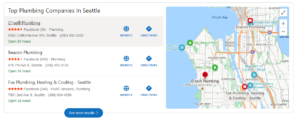
Bing Places for Business is the Microsoft’s version of Google Business Profile. It’s a way for businesses to display their physical store information on Bing.com and Bing Maps.
Just as you can on Google, if you have a verified Bing Business Listing account, you can provide a lot of information about your business, such as where it’s located, how to contact you, when you’re open, and your website. Bing’s business listings started back in 2009, and Microsoft has improved them a lot over time, adding extra features like photos and videos.
Benefits of Using Bing Places for Local SEO
To begin, it’s essential to recognize that Bing maintains its position as the second-largest global search engine, commanding a substantial 8.23 percent of the market share, while Google remains the dominant force with an impressive 85.52 percent share. This divergence highlights that although you might personally lean towards using Google Search or Google Maps, there’s a sizable user base that opts for Bing.
Furthermore, Bing’s integration into Microsoft Edge browsers creates a significant user pool, potentially unaware that their searches are powered by Bing. Anticipating the future, market dynamics may shift, and with Bing’s strategic integration of AI within its search results, it’s conceivable that it could seize a more substantial portion of the market.
The financial aspect of using Bing Places is particularly compelling – it comes at a cost of zero dollars.
Establishing a Bing business listing requires no financial commitment, only an investment of your time. 🕒
This ease of use is another facet that distinguishes Bing Places. Whether you’re technologically inclined or not, the straightforward process of creating and managing your account is well-suited for all levels of technical expertise.
Lastly, Bing Places also gives you important numbers and information about your business. The platform’s analytics dashboard shows you clear facts. These facts include the following:
- How often people see your business in search results.
- How many people click on it.
- The number of customer reviews.
These numbers help you improve how you run your business and make smart choices.
How to Create a Bing Business Listing?
Here is a detailed step-by-step guide on how to create a Bing Business Listing:
- Go to the Bing Places for Business website by typing “Bing Places for Business” into your search engine or directly visiting https://www.bingplaces.com/.
- Once on the Bing Places for Business website, click on the “Get Started” button. This will take you to the sign-in page.
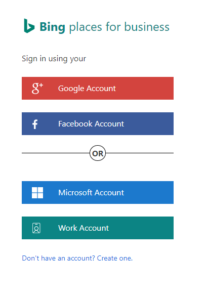
- Sign in with your Microsoft account. If you don’t have one, click on the “Sign up now” link to create a new account.
- After signing in, you will be prompted to enter your business name and location. If your business is already listed, you can claim it by clicking on the “Claim this business” link.
- Fill in the required information about your business. This includes your business category, phone number, website, and business hours. Make sure to provide accurate and up-to-date information.
- Once you have entered the necessary details, click on the “Next” button to proceed to the verification step.
- Bing requires businesses to verify their listings to ensure the information is accurate. You can choose between two verification methods: postcard or phone call.
- Postcard verification: Bing will send a postcard to the address you provided during registration. It typically takes 5-7 business days to receive the postcard. Once you receive it, log back into your Bing Places for Business account and enter the verification code on the postcard.
- Phone verification: If you prefer a faster verification method, you can select the phone call option. Bing will call the phone number you provided and provide a verification code. Enter this code on the Bing Places for Business website to complete the verification process.
- After successfully verifying your business, you can enhance your listing by adding additional details. This includes uploading photos and videos of your business, providing a detailed description, and adding any special offers or promotions.
- Review your listing to ensure all the information is accurate and complete. Double-check your business hours, contact information, and website URL.
- Once you are satisfied with your listing, click on the “Submit” or “Publish” button to submit it for review. Bing will review your listing to ensure it meets their guidelines and is accurate.
- After the review process, your business listing will be published on Bing. It will be visible to Bing users when they search for businesses in your area.
Remember to periodically log into your Bing Places for Business account to update your listing with any changes to your business information, such as address, phone number, or business hours. This will help keep your listing accurate and up to date.
Optimize for Local SEO
Once your Bing business listings have been published, the next step is to optimize the listings for local SEO. Optimizing your Bing Business Listing for local SEO can help improve your visibility in Bing search results. Here are some tips to optimize your Bing Business Listing:
- Claim and Verify Your Listing: Ensure that you have claimed and verified your Bing Business Listing. This step is crucial as it establishes your ownership and allows you to manage and optimize your listing.
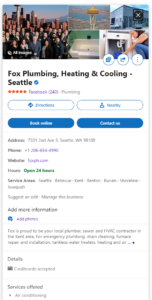
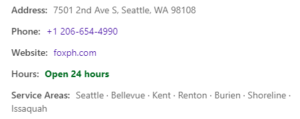
- Accurate Business Information: Make sure your business name, address, and phone number (NAP) are accurate and consistent across all online platforms, including your website and other directories. Consistency is key for search engines to trust your information.
- Choose Relevant Categories: Select the most appropriate categories for your business. Bing provides a list of categories to choose from, so pick the ones that accurately represent your products or services.
- Optimize Business Description: Write a compelling and keyword-rich business description. Include relevant keywords that describe your business and the services you offer. However, avoid keyword stuffing and ensure that the description reads naturally.
- Add Photos and Videos: Enhance your listing by adding high-quality photos and videos. Visual content can engage users and make your listing more appealing. Include images of your storefront, products, team, and any other relevant visuals.
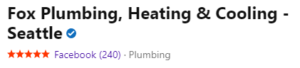
- Get Positive Reviews: Encourage your customers to leave reviews on your Bing Business Listing. Positive reviews can improve your credibility and attract more customers. Respond to reviews, both positive and negative, to show that you value customer feedback.
- Include Local Keywords: Incorporate local keywords in your listing, such as city names or neighborhood references, to improve your visibility for local searches. For example, if you own a bakery in Seattle, include phrases like “Seattle plumbing” or “best plumbers in Seattle” in your listing.
- Utilize Bing Places for Business Dashboard: Take advantage of the features offered by the Bing Places for Business dashboard. Monitor your listing’s performance, update information, and make use of any additional features or tools provided.
- Optimize Your Website: Ensure that your website is optimized for local SEO. Include your business name, address, and phone number on your website, and consider creating location-specific landing pages if you have multiple locations.
- Build Local Citations: Get your business listed in other online directories and local citation sources. This helps establish your business’s authority and improves your chances of ranking higher in local search results.
By implementing these optimization strategies, you can increase your visibility in Bing search results and attract more local customers to your business. Regularly monitor and update your listing to maintain its accuracy and relevance.
Powerful Benefits: Leveraging Bing Local Insights/Analytics
Leveraging Bing Local Insights/Analytics can provide powerful benefits for your business. Here are some key advantages:

- Understanding Customer Behavior: Bing Local Insights/Analytics provides valuable data on customer behavior, such as how users are finding your business, what actions they take after finding your listing, and the demographics of your audience. This information helps you understand your customers better and make data-driven decisions to improve your marketing strategies.
- Optimizing Local SEO: By analyzing the data in Bing Local Insights/Analytics, you can identify keywords that are driving traffic to your listing and optimize your content accordingly. This can improve your local SEO efforts and increase your visibility in Bing search results.
- Tracking Performance: Bing Local Insights/Analytics allows you to track the performance of your business listing over time. You can monitor metrics like impressions, clicks, and conversions to assess the effectiveness of your listing and make necessary adjustments to improve performance.
- Identifying Trends and Opportunities: By analyzing the data, you can identify trends and patterns in customer behavior. This can help you uncover new opportunities, such as identifying popular search queries related to your business or discovering untapped markets for expansion.
- Improving User Experience: Understanding how users interact with your Bing Business Listing can help you enhance the user experience. For example, if you notice that users are frequently clicking on your website link but not converting, you can optimize your website to improve conversion rates.
- Competitive Analysis: Bing Local Insights/Analytics allows you to compare your business’s performance with that of your competitors. This can provide valuable insights into your market position and help you identify areas where you can outperform your competition.
- Monitoring Reviews and Reputation: Bing Local Insights/Analytics enables you to monitor customer reviews and ratings. This allows you to stay on top of customer feedback, respond to reviews promptly, and manage your online reputation effectively.
- Local Advertising Insights: If you are running local advertising campaigns on Bing, the insights provided by Bing Local Insights/Analytics can help you measure the effectiveness of your campaigns. You can track the performance of your ads, including impressions, clicks, and conversions, to optimize your advertising efforts.
By leveraging Bing Local Insights/Analytics, you can gain valuable insights into your customers, improve your local SEO efforts, track performance, identify trends, and make data-driven decisions to grow your business. It provides you with the tools and information needed to optimize your Bing Business Listing and stay ahead of the competition.
How Can Bing be a Game Changer for your Local Business?

Bing can be a game changer for your local business, providing numerous advantages to help you stand out and attract more customers. By optimizing your local business listing on Bing, you can significantly increase your online visibility. For example, when users search for products or services in your local area, a well-optimized Bing Business Listing can ensure that your business appears prominently in Bing search results. This increased visibility can drive more traffic to your website or physical store, leading to higher chances of conversions and customer engagement.
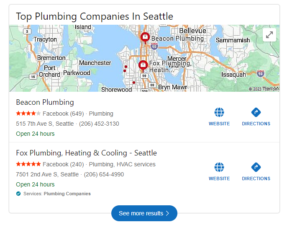
Compared to other search engines, Bing often has less competition in certain industries and locations. This means that by optimizing your local business listing on Bing, you have a better chance of standing out and capturing the attention of potential customers who may be overlooked on more crowded platforms. Bing’s integration with Bing Maps is another game-changing feature for local businesses. When users search for businesses on Bing, they can easily find your location, get directions, and even view photos of your storefront through Bing Maps.
Furthermore, Bing powers voice search for platforms like Microsoft’s Cortana and Amazon’s Alexa. As voice search continues to grow in popularity, optimizing your Bing Business Listing can help you capture voice search queries and appear in voice search results. For example, if someone asks their voice assistant, “Find a plumber near me,” having a well-optimized Bing listing can increase the chances of your plumbing business being recommended as a local solution.
Lastly, Bing’s integration with the Microsoft ecosystem, including Windows, Office, and other Microsoft products, provides additional opportunities for your business to reach users across multiple platforms and devices. This integration allows you to expand your reach and increase your brand presence, potentially attracting new customers who are already engaged with Microsoft’s products and services.
Get the Most Out of your Bing Listings
Once your account setup is complete and verified, you’ve taken significant steps toward making the most of Bing for Business. However, there are a few more actions you can take to get even better results:
- Stay Updated on Local SEO: Just like Google, Bing frequently updates its rules for showing search results. By staying informed about which factors matter most for local searches, you can ensure your business maintains a strong presence.
- Keep an Eye on Competitors: It’s equally important to watch what your competitors are up to. Strive to have more and better reviews, more pictures, and more detailed profiles. If they try out a new approach that seems effective, consider adopting it too.
- Explore Bing Advertising: While Bing Places can get your business into search results for free, if you want to boost your business’s visibility, look into Bing’s pay-per-click (PPC) advertising. It might be more cost-effective compared to Google.
- Offer Deals or Discounts: You can use Bing for Business to create and promote special deals or discounts without any charge. After logging in, just click the relevant section on your dashboard to get started. This can attract more customers to your business.
Discover a game-changing SEO plan in this article for ultimate victory! 🚀
FAQ: Bing Business Listings
How to Get Your Bing Business Listing
Getting your Bing Business listing is straightforward. Visit the Bing Places for Business website and log in using your Microsoft account. Then, look up your business info and claim it if you see it listed.
How to Make a Bing Business Listing
If you can’t find your business on Bing Places for Business, you can make a new listing from the beginning. Just follow the steps on the Bing Places for Business website. Add details like your business name, address, phone number, website, and other information like when you’re open. After that, you’ll need to prove that you own the business before Bing shows your listing to others.
How to Change a Bing Business Listing
Updating your Bing Business Listing is simple. Log in to the Bing Places for Business website and find your business on your dashboard. Click on your listing and select “Edit” to make changes to the information.
Conclusions
Think of Bing Places for Business as the lesser-known relative of Google My Business. Even though it’s not in the spotlight as much, it’s still a strong tool to make more people notice your local business and improve how you show up in local online searches.
But remember, creating an account is just the first step. To get the most out of your Bing Business Listing, you should pay to the SEO elements which will help you make your listing better for Bing searches, and bring more people to visit your actual store.