
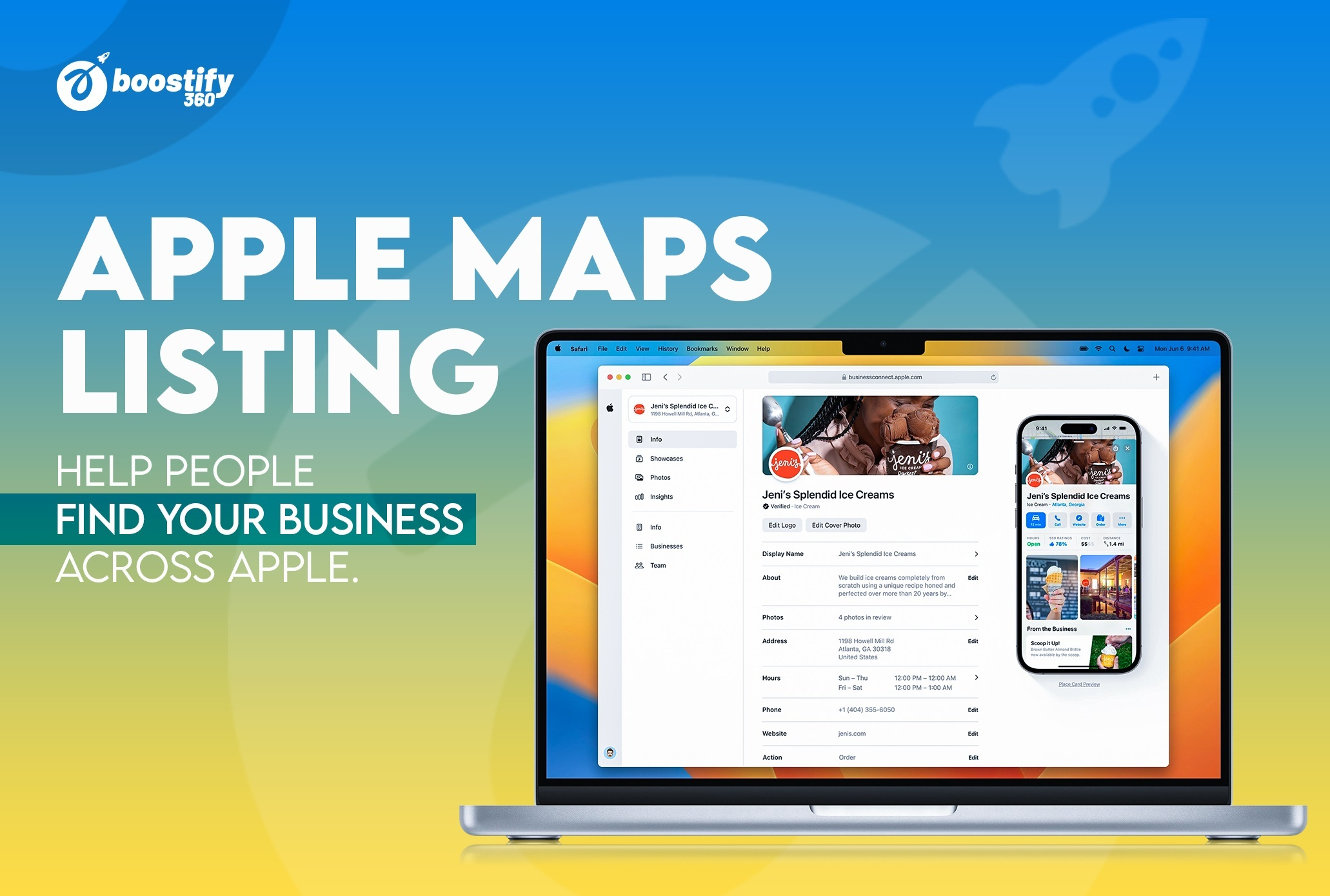
In today’s digital landscape, having a strong online presence is essential for businesses to thrive. One platform that plays a crucial role in helping customers find and connect with local businesses is Apple Maps. With over 70 million users, optimizing your Apple Maps listing can significantly impact your reach and visibility.
In this article, we will explore the power of Apple Business Connect and provide step-by-step guidance on how to optimize your Apple Maps listing for maximum impact.
Understanding Apple Business Connect and its Benefits
“Apple Business Connect has revolutionized the way business owners manage their presence on Apple Maps,” says John Smith, a leading SEO expert. “It gives businesses the control and flexibility they need to optimize their listings and attract more customers.”
Apple Business Connect is a free tool provided by Apple that empowers business owners to manage their listings on Apple Maps. This tool gives you control over your business information, allowing you to claim and optimize your listing. Previously, business owners had no control over their Apple Maps listing, making this an exciting development for those in the SEO world.
The Importance of Optimizing Your Apple Maps Listing
“Having an optimized Apple Maps listing is like having a virtual storefront that is easily accessible to millions of potential customers,” explains Sarah Johnson, a marketing strategist. “By ensuring your business information is accurate and appealing, you increase your chances of attracting customers and driving foot traffic to your location.”
Optimizing your Apple Maps listing is crucial for ensuring that potential customers can find and contact your business. With millions of users relying on Apple Maps for navigation and local searches, having accurate and up-to-date information is essential. By optimizing your listing, you can increase your visibility and attract more customers to your doorstep.
Step-by-Step Guide: Publishing an Apple Maps Listing
Publishing your business listing on Apple Maps is a crucial step in ensuring that potential customers can easily find and connect with your business. Follow this step-by-step guide to successfully publish your Apple Maps listing using Apple Business Connect:
Step 1: Create an Apple ID
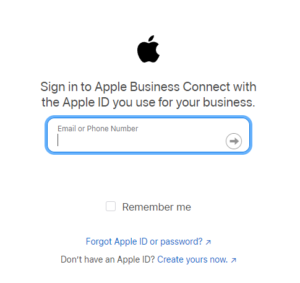
If you don’t already have an Apple ID, visit appleid.apple.com and click on “Create Your Apple ID.” Follow the prompts to provide the necessary information and create your unique Apple ID. For detailed guide on creating an Apple ID, click here.
Step 2: Access Apple Business Connect
Once you have your Apple ID, go to businessconnect.apple.com and log in using your credentials.
Step 3: Navigate to Locations
From the dashboard, locate the “Locations” option in the side menu and click on it. This will take you to the page where you can manage your business locations.
Step 4: Add a New Location
On the Locations page, click on the “Add” button located at the top right corner of the screen. This will initiate the process of adding a new location to your Apple Maps listing.
Step 5: Search for Your Business
In the search field, enter the name of your business and click “Search.” Apple Business Connect will search for existing listings that match your business name.
Step 6: Select or Create a Listing
If your business is already listed, select the appropriate listing from the search results. If your business is not listed, click on the “Create New Location” option to proceed.
Step 7: Provide Business Information
Fill out all the required fields with accurate and up-to-date information about your business. This includes your business name, address, phone number, and other relevant details. Double-check the information for accuracy before proceeding.
Step 8: Verify Your Business
Apple may require you to verify your business to ensure its authenticity. This verification process may involve additional steps such as providing documentation or receiving a verification code via mail or phone. Follow the instructions provided by Apple Business Connect to complete the verification process.
Step 9: Optimize Your Listing
Once your business is verified, take the opportunity to optimize your Apple Maps listing. Add high-quality photos that showcase your business, write a compelling and informative description, and select relevant categories that accurately represent your business.
Step 10: Monitor and Update
Regularly monitor your Apple Maps listing and make updates as needed. Ensure that your business information remains accurate and up-to-date. Respond to customer reviews and address any concerns promptly to maintain a positive online presence.
By following these step-by-step instructions, you can successfully publish your business listing on Apple Maps using Apple Business Connect. Take advantage of this powerful tool to increase your visibility, attract more customers, and grow your business.
How to optimize an Apple Maps Listing
Optimizing your Apple Maps listing is crucial for increasing visibility, attracting more customers, and driving traffic to your business. Follow these steps to effectively optimize your Apple Maps listing:
1. Claim Your Listing:

Visit the Apple Business Connect website (businessconnect.apple.com) and log in using your Apple ID. Locate your business listing and claim ownership if it hasn’t been claimed already. This step is essential to gain control over your listing and make necessary optimizations.
2. Ensure Accurate Business Information:
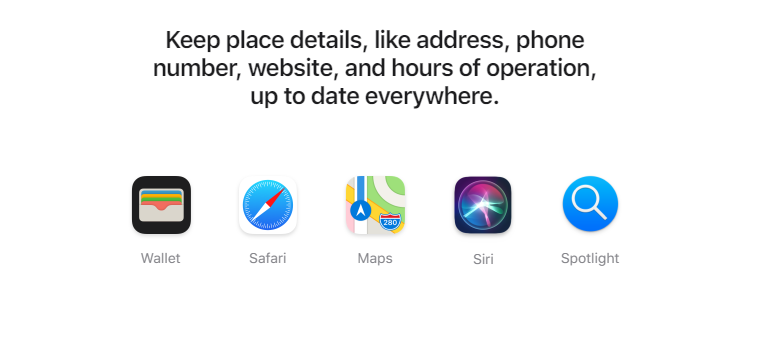
Verify that your business name, address, phone number (NAP), and other contact details are accurate and consistent across all platforms. Inconsistencies can confuse potential customers and harm your search rankings. Ensure that your NAP information matches your website and other online listings.
3. Add Relevant Categories and Attributes:
Select appropriate categories and attributes that accurately represent your business. This helps Apple Maps categorize and display your listing to users searching for specific services or products. Choose categories that align with your offerings and target audience.
4. Craft a Compelling Description:
Write a concise and engaging description of your business. Highlight your unique selling points, products, services, and any special features that set you apart. Incorporate relevant keywords naturally to improve your chances of appearing in relevant searches.
5. Upload High-Quality Photos:
Include high-quality photos that showcase your business, products, and services. Visual content plays a significant role in attracting customers. Ensure that the images are clear, well-lit, and accurately represent your business. Consider including interior and exterior shots, product images, and images of your team.
6. Encourage Customer Reviews:

Positive reviews and ratings can boost your credibility and attract more customers. Encourage satisfied customers to leave reviews on your Apple Maps listing. Respond to reviews, both positive and negative, to show your engagement and commitment to customer satisfaction.
7. Monitor and Update Regularly:
Regularly monitor your Apple Maps listing for any changes or updates. Update your business information promptly if there are any changes. Monitor customer reviews and respond to them in a timely and professional manner. Regularly check for any duplicate listings and request their removal if necessary.
8. Leverage Additional Features:
Explore additional features offered by Apple Business Connect, such as adding links to your website, social media profiles, and other relevant online platforms. Utilize these features to provide more information and improve the overall user experience.
9. Stay Consistent with Branding:
Maintain consistency with your branding across your Apple Maps listing. Use your logo, brand colors, and other visual elements that align with your brand identity. Consistency helps customers recognize and connect with your business.
10. Monitor Analytics and Adjust:
Regularly review the analytics provided by Apple Business Connect to gain insights into how your listing is performing. Monitor the number of views, searches, and actions taken by users. Adjust your optimizations based on the data to improve your listing’s effectiveness.
By following these optimization steps, you can enhance your Apple Maps listing and increase your business’s visibility to potential customers. Keep your listing up-to
Apple Maps vs Google Maps: Understanding the Differences

“While Google Maps has long been the dominant player in the mapping industry, Apple Maps has made significant improvements and gained popularity among Apple device users,” says Mark Davis, a technology analyst. “Businesses should not underestimate the impact of Apple Maps, especially if their target audience consists of Apple users.”
Understanding the differences between the two platforms is essential for optimizing your Apple Maps listing effectively. While Google Maps relies heavily on Google My Business for listing management, Apple Business Connect provides a unique opportunity for business owners to take control of their Apple Maps presence.
Related:
- How Local SEO Increases Profit.
- Local SEO Audit Guide – Dominating Local Searches
- Local SEO Strategy: A Guide to Winning SEO Strategy
- Bing Business Listings: A Local SEO Guide to Bing Business Listings
Apple Maps Listing: FAQs
Q: How do I create an Apple ID for my Apple Maps listing?
A: If you don’t already have an Apple ID, you can create one by visiting appleid.apple.com and following the prompts to register. Once you have your Apple ID, you can proceed with claiming or creating your Apple Maps listing using Apple Business Connect.
Q: Can I edit my business information on an Apple listing?
A: Yes, with Apple Business Connect, you have the ability to edit and update your business information, including name, address, and phone number. This ensures that your listing is accurate and up-to-date for potential customers.
Q: How important is it to optimize my Apple Maps listing compared to Google Maps?
A: While Google Maps is widely used, optimizing your Apple Maps listing is still crucial, especially if your target audience consists of Apple device users. With over 70 million users, Apple Maps provides a significant opportunity to reach potential customers and drive foot traffic to your business.
Q: Can I add photos and descriptions to my Apple Maps listing?
A: Absolutely! Apple Business Connect allows you to upload high-quality photos and write compelling descriptions of your business. Visual content and engaging descriptions can significantly impact a user’s decision-making process and attract more customers.
Conclusion
Following the steps outlined in this article and utilizing the power of Apple Business Connect, you can optimize your Apple Maps listing for maximum reach and visibility. Embrace the opportunities provided by Apple Maps and watch your business thrive in the digital world! 🔥